
Running your server
Once your servers are up, the manager does most of the work. Here is what it can do for you.
Messages to players
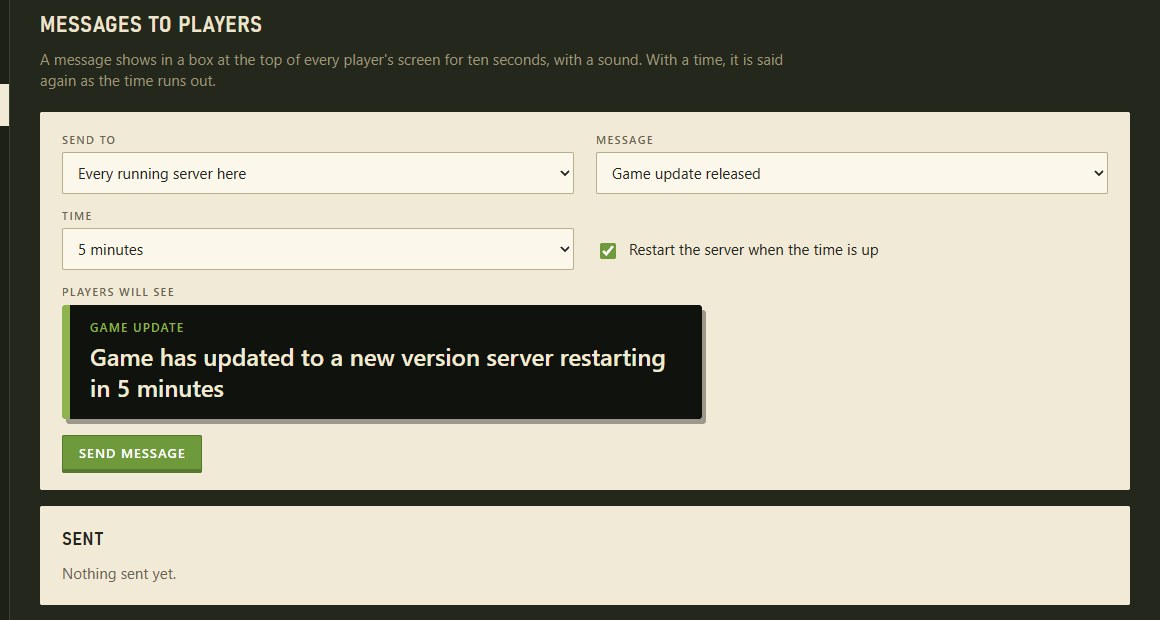
On Messages, tell everyone on a server about an update, a restart or maintenance, with a countdown, or type your own. A message shows at the top of every player's screen for ten seconds, with a sound.
Updates
Players' games are always on the newest release, and the main backend lets no older one in, so keep your servers on it too. With Automatic updates on (the default, in Settings), the manager checks every half hour, warns the players on your servers with a countdown, installs the release and starts your servers again. Your server.json, game files and logs stay.
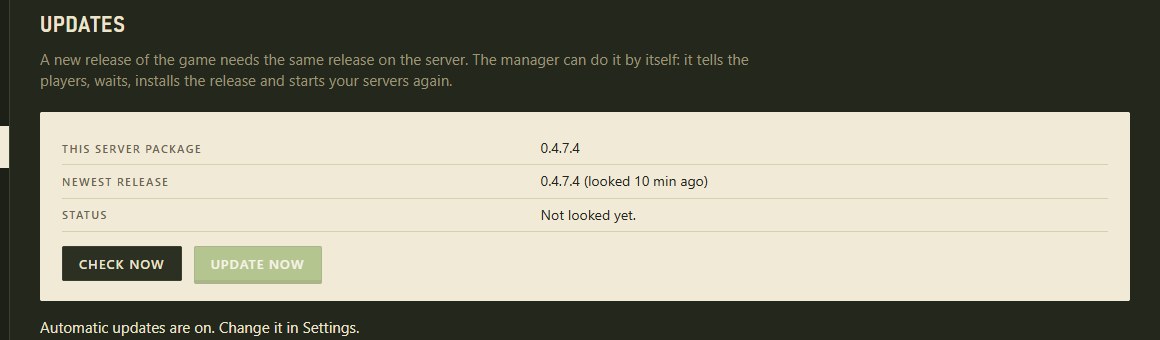
Updated players may not be able to join your servers until you update them yourself.
Your community's rules
Community servers set their own rules, and must follow our terms to stay listed. Team balance is on by default for managed servers: when one team has 2 or more players more for 20 seconds, a player who has died moves to the other side, with no points lost.
From 0.4.8 (in testing), the manager's Moderation page keeps your own ban list, with kicks, mutes and a log: see Moderation. The Dashboard tab watches your servers: see Dashboard and community page.
Admins in the match new in 0.4.8
Put your own player ID, and your admins', in a server's Admin player IDs. In the match, F9 then opens the admin panel: the time of day, the clouds, the weather, the fog, the wind and the cloud height, for every player at once. It also has a free camera that flies anywhere while your soldier stands still, and Hide HUD and UI. A player without the right who presses F9 is shown their player ID, to send to you.
The sky and the weather only show on Night Ops servers and in Custom Matches. On a Night Ops server, your changes hold for the rest of the round: see Night Ops.